Using SSH Tunnels
How to create an encrypted ssh tunnel for applications
Basic Concepts
- Sometimes you want to access a remote server using software on your local machine
- BUT that software does not have a built in way to use an secure shell tunnel (so, MySQL Workbench DOES, but MongoDB Compass DOES NOT)
- So you can create what is known as an SSH Tunnel, that links a local port on YOUR machine to a port on the remote machine that is linked to the service (say port 27017 for MongoDB)
- This allows a secure connection to the service on the remote machine, but from your software applications viewpoint, you will be connected to a local port on YOUR machine
- You can do this at the command line, or using putty
Examples
Command Line version (Mac/Linux) on AWS
- This assumes you already have your
filename.pem in your .ssh folder AND that you have changed the permisisons (chmod 600 ~/.ssh/filename.pem) previously
ssh -i ~/.ssh/my-aws-key.pem -N -f -L 8080:localhost:27017 ec2-user@xxx.xxx.xxx.xxx- Obviously, replace xxx.xxx.xxx.xxx with your up to date IP address (or domain name if you have one)
- Now you can start your service and tell it to
- use the local host port 8080 for your application (or whatever you used above)
- this will connect on the remote machine on
localhost:27017 or whatever domain:port you set up
Putty version for AWS
- Load up your existing settings that you normally use in Putty to connect to your remote host
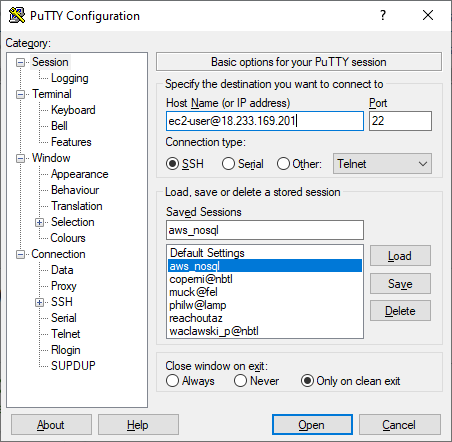
- Now go into
ssh then tunnels
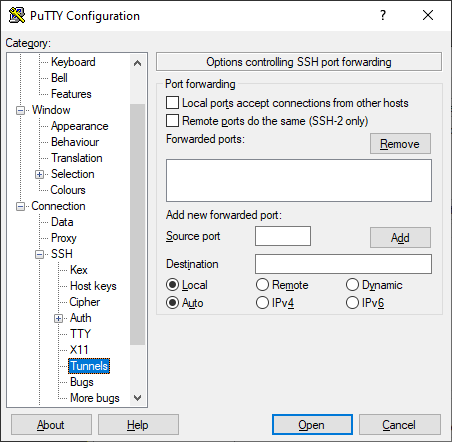
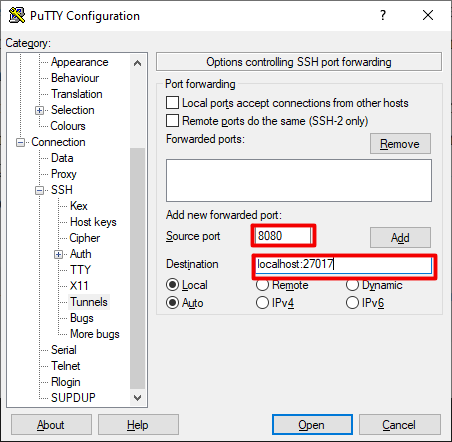
- Set up the Source port to
8080 and the Destination port to localhost:27017 (Remember, change the port numbers and IP address as needed for your application)
- Now hit the Add button and you can then do Open, This should establish your tunnel, but for putty will oddly enough also open up the ssh terminal as well
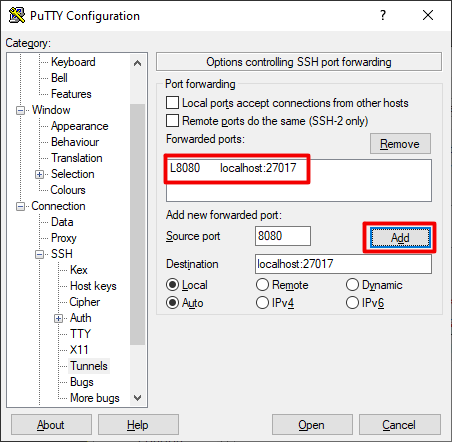
- Now go and set up your application to connect to
localhost:8080 or whatever values you used for the Source Port
Resources
Page last updated on 20240228


